Tables & QR codes
Permanent table QR codes you can print, put in stands or engrave on wood.
Open Tables.
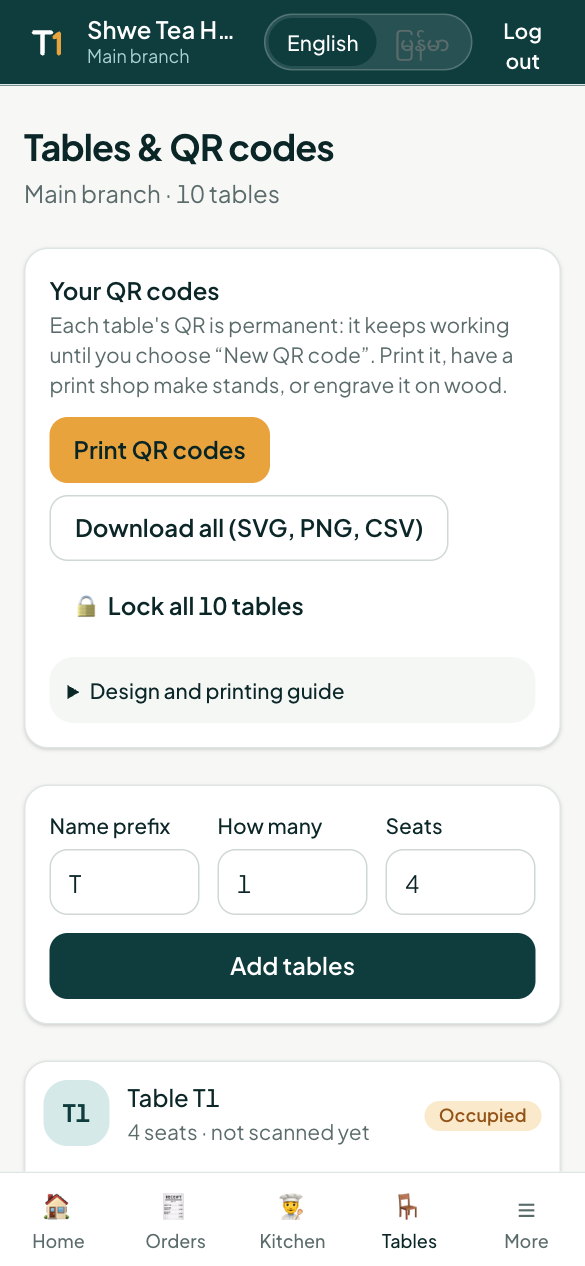
Add tables
Tap Add tables, enter a name prefix (e.g. T), how many, and seats. Edit a table to rename it or change its seats.
Permanent QR codes
Each table's QR is permanent: it keeps working until you choose New QR code. Diners scan it to see your menu, order and pay.
For each table you can download:
- SVG — sharp at any size; best for print shops, laser engraving and CNC.
- PNG — for Canva, Word or your phone.
Download all gives every table's SVG and PNG plus a list in one file.
Print templates
Print QR codes opens ready-made A4 layouts:
- Cards — 6 per page, to cut out for table stands.
- Table tent — fold along the middle; the QR shows on both sides.
- Stickers — 6 × 6 cm, 12 per page.
Print at 100% scale.
Design and engraving tips
- Keep the QR at least 3 cm wide (4 cm on wood or textured materials).
- Dark code on a light background, with an empty border around it.
- A small logo in the middle is fine (up to about a fifth of the width).
- Make one and test it with a few phones before making them all.
Lock printed QR codes
After printing or engraving, lock the table (Edit → Lock QR, or Lock all). A locked QR can't be replaced or deleted by accident. Unlock only to replace a lost or damaged stand.
Last scanned shows when each table's QR was last used — handy to spot a damaged stand.
Visit QR slips
From Orders, Seat & print QR opens a bill for a table and prints a small slip with a one-visit QR. It stops working when that bill is paid, so lost or photographed slips can't be reused.