Menu
Edit dishes and prices any time, add choices like Chicken / Pork, mark items sold out, and add beautiful photos.
Open More → Menu. Names, prices and photos are shared by all your branches; availability (sold out, hidden) is per branch.
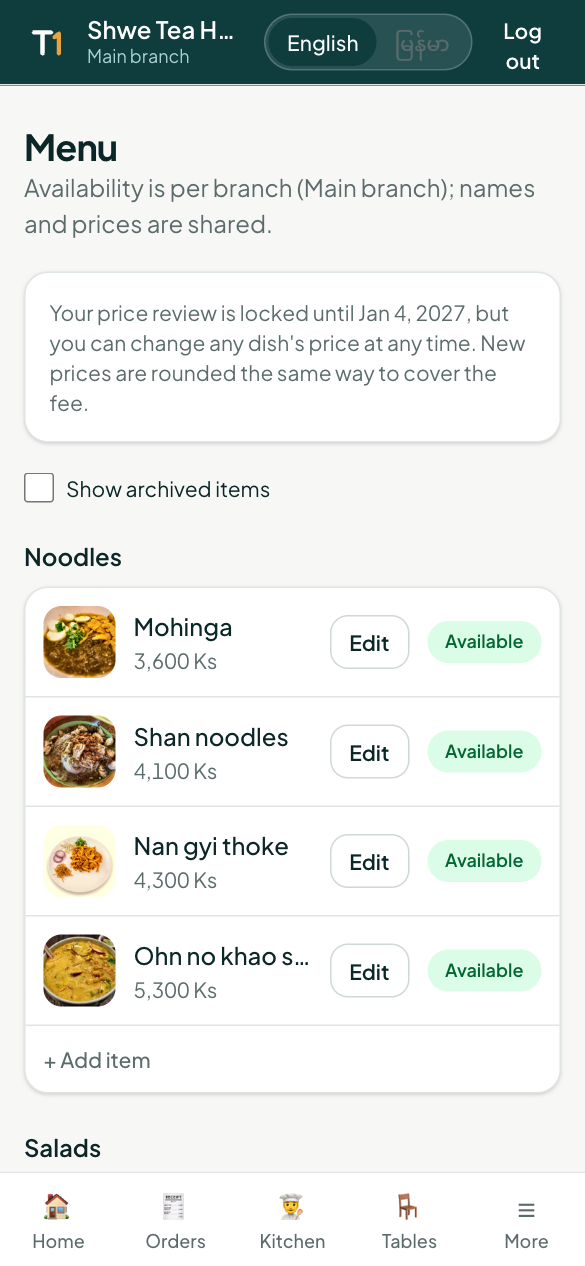
Edit a dish
Tap a dish, or Edit, to change:
- Name and description in Myanmar and English
- Category and kind (food, drink, dessert…)
- Which screen it goes to in the kitchen (Kitchen screen or Bar screen)
- Your price — on the Adjust my prices plan the menu price diners pay is shown next to it
Tap Save. Changes reach diners straight away.
Choices and add-ons
Under Choices add things diners pick when they order:
- Pick one, e.g. Meat: Chicken / Pork (+500) — tick Required if they must choose.
- Pick several, e.g. Extras: egg, fritters.
Each option can add to the price. Empty rows are ignored.
Add dishes and categories
- Add item at the end of a category.
- Add a category at the bottom of the page.
Sold out, hidden, archived
- Sold out — still on the menu, but diners can't order it today.
- Hidden — not shown to diners at this branch.
- Archive — removed from the menu; Show archived items lets you restore it.
Dish photos
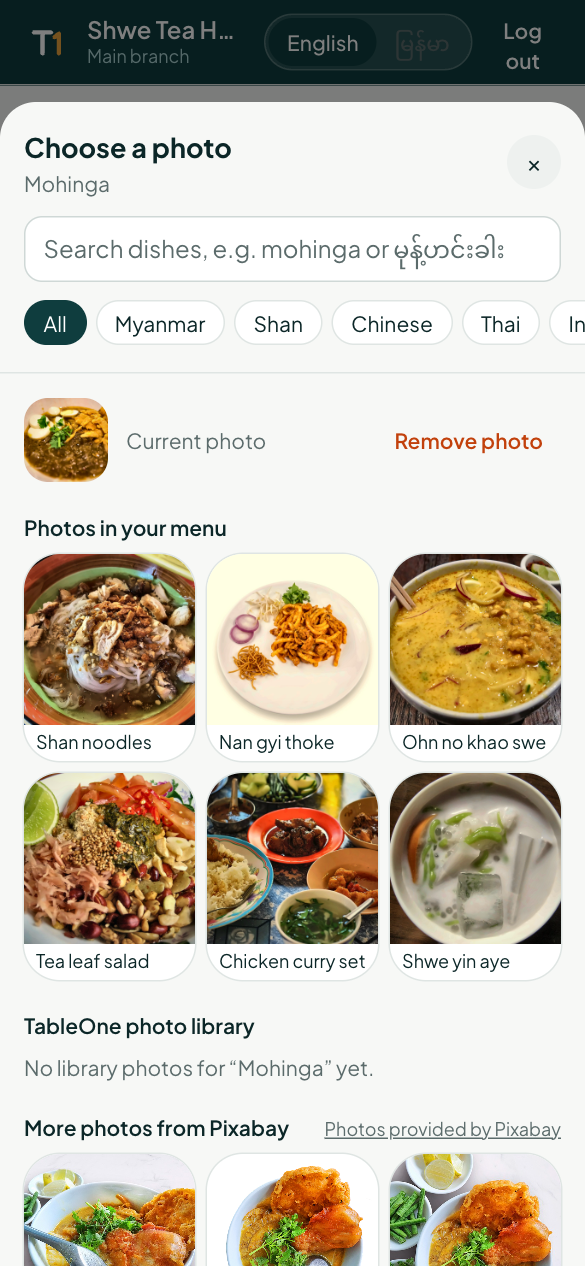
Tap a dish's photo to open the photo picker:
- Photos in your menu — reuse a photo another dish already has.
- Suggested for this dish and the TableOne photo library — search in English or Myanmar (e.g. mohinga or မုန့်ဟင်းခါး). These show a small Example photo tag to diners.
- More photos from free stock libraries.
- Create with AI — describe the dish and AI draws two images. Every AI image you make is kept in Your AI images, so you never pay for the same one twice.
- Upload or take a photo — a real photo of your dish is always best.
Price review
Your approved prices are locked for 3 months. You can still change an individual dish's price from Edit. After the lock, Review prices lets you re-balance the whole menu with your latest sales.