Orders & payments
The Orders screen, kitchen display, cash and QR payments, discounts, receipts and coupons.
The Orders screen
Orders shows your floor: every table and whether it's free, has an open bill, or has asked for the bill. Tap a table to open its bill.
- New counter order — for takeaway or counter customers without a table.
- Seat & print QR — open a bill and print a one-visit QR slip for the guests.
Taking an order
Diners usually order themselves from the table QR. Staff can also add items: open the bill → Add items → choose dishes and their choices.
Each order goes to the kitchen display and, if you have printers, prints a kitchen ticket.
Calling staff
When a diner taps Call staff to pay, the table shows Bill requested. Opening the bill tells the diner a waiter has seen it.
Taking payment
On a bill:
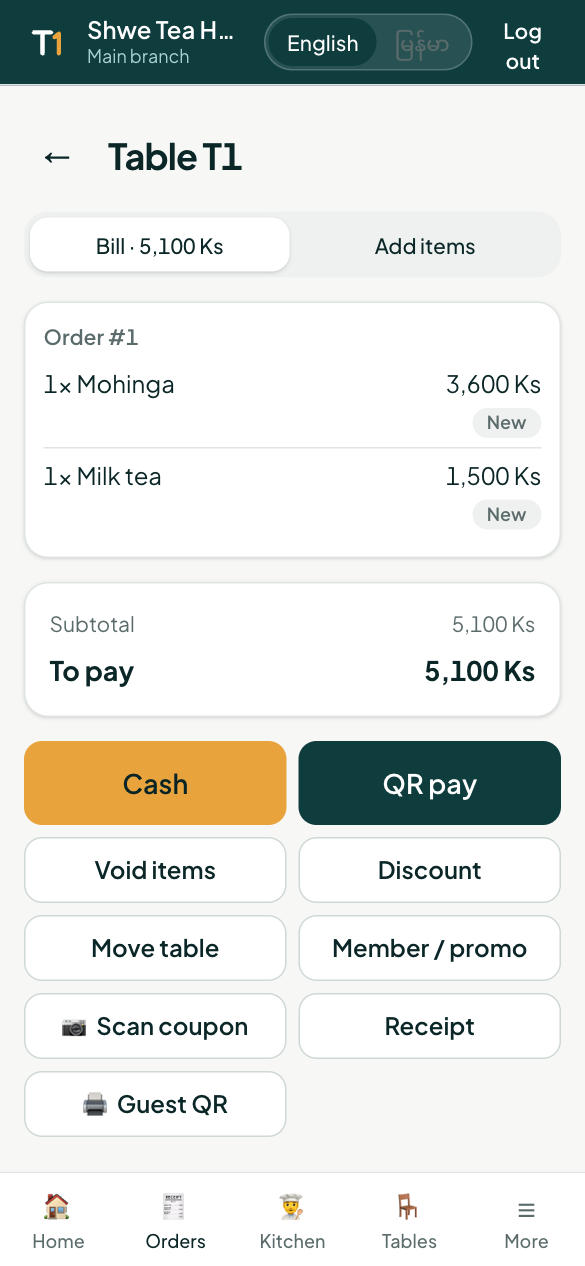
- Cash — enter the cash received; TableOne shows the change. A partial payment is allowed (the rest paid another way).
- QR pay — shows an MMQR code the customer scans with KBZPay, WavePay, AYA Pay, CB Pay or any MMQR banking app.
- Diners can also pay from their own phone, the whole bill or Split the bill between people.
The bill closes automatically when everything is paid.
Discounts, voids and moving tables
- Discount and Void items need a manager's PIN (each owner and manager sets one in More → My PIN).
- Move table moves the whole bill to another table.
Promo codes and coupons
Member / promo lets you find a member by phone (to give them points or use their points) and type a promo code.
📷 Scan coupon opens the camera: scan the QR on the customer's phone (from My TableOne) and the discount comes off the bill straight away.
Receipts
- Receipt shows the receipt to print on any printer.
- If you have a receipt printer, receipts print when a bill is paid, and any time with Print receipt.
- On the receipt page you can email the receipt to the customer, with their company name and Tax ID for business customers.